Turning an ASUS Eee PC into a FreeDOS Laptop
Table of Contents
Turning an ASUS Eee PC into a FreeDOS Laptop
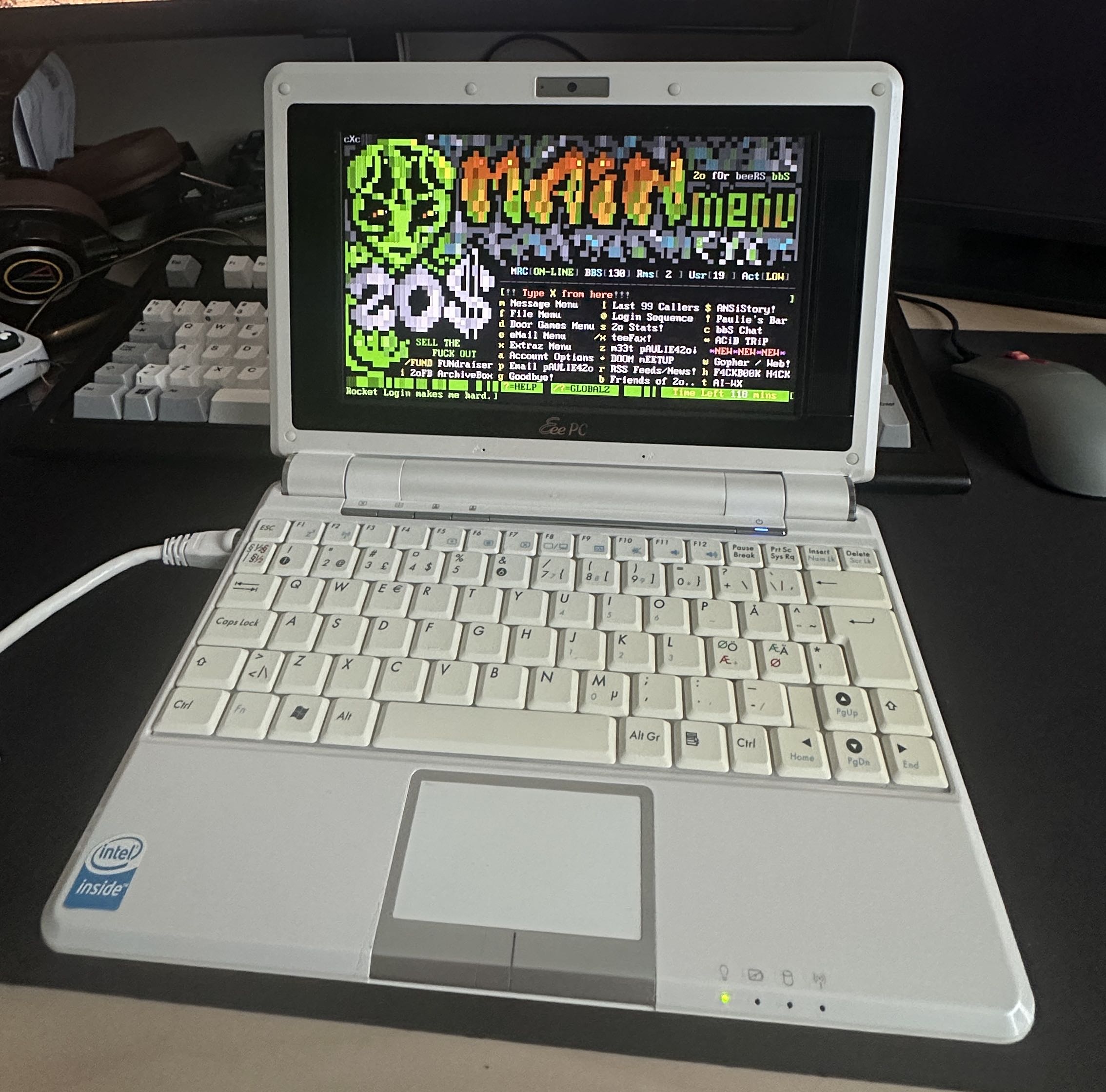
Netbooks peaked around 2010 before rapidly disappearing from everyday use with the arrival of modern smartphones. With limited performance, many of them ended up forgotten in closets. This project brings an ASUS Eee PC back to life as a FreeDOS machine, aiming to create a practical and usable DOS environment on hardware that still has plenty to offer.
Eee PC 904HD
The ASUS Eee PC 904HD is an early netbook (2008) that represents the first generation of the Eee PC series. It is a small, lightweight, and low-power notebook designed for basic use and mobility. Today, the Eee PC 904HD is best suited for retro and hobby use, such as running FreeDOS or lightweight Linux, working from the command line, and experimenting with older hardware.
Hardware
- CPU: 900 MHz Intel Celeron
- Chipset: Intel Mobile 915GM / ICH6M
- GPU: Intel Gma 900
- Ram: 2gb DDR2 So-Dimm
- Screen: 8,9" 1024x600
- Lan: 10/100 Mbit Atheros AR8121 / AR8113 / AR8114
- Wifi: Atheros AR242x / AR542x | Sound: Intel ICH6 HD Audio
- HDD: Kingston 128gb SSD
It’s difficult or almost impossible to get a wifi card to work, so I made a raspberry pi bridge to get wireless internet on the computer.
Wifi - Lan bridge for networking:
- Raspberry Pi Zero W2
- A-Link Gigabit Ethernet USB - adapter
Software
Freedos (open source DOS-compatible operating system)
VSBHDA (Sound blaster emulation for HDA (and AC97/SBLive)
L1EPKT.EXE (Packet driver for the Atheros L1 Gigabit Ethernet Controller, ver 1.2.613.13)
mTCP (set of TCP/IP applications for personal computers running PC-DOS, MS-DOS, FreeDOS, and other flavors of DOS.)
4GMGSMT.SF2 (Soundfont from Sound Blaster CD)
Installing Freedos
The machine has USB 2.0 ports, so I grabbed the Freedos 1.4 FullUSB image and made the USB stick into installation media. I didn’t encounter any problems installing.
Now Freedos is booting.
Sound emulation
VSBHDA provides Sound Blaster–compatible audio emulation for DOS environments. The project repository and documentation are available here: https://github.com/Baron-von-Riedesel/VSBHDA
Memory Extender (JEMM)
To make the sound emulation work correctly, the required memory extender files must be installed first. These files are provided by the JEMM project and can be downloaded from the following release page: https://github.com/Baron-von-Riedesel/Jemm/releases/tag/v5.85
Modifying FDCONFIG.SYS
Next, FDCONFIG.SYS must be modified so that FreeDOS can boot with the required memory extender and VSBHDA support.
Below is the configuration used. Pay special attention to MENU ENTRY 6, which boots FreeDOS with VSBHDA support enabled.
SET DOSDIR=C:\FreeDOS

!COUNTRY=001,858,C:\FreeDOS\BIN\COUNTRY.SYS
!LASTDRIVE=Z
!BUFFERS=20
!FILES=40
!MENUCOLOR=7,0

MENUDEFAULT=6,5
MENU 1 - Load FreeDOS with JEMMEX, no EMS (most UMBs), max RAM free
MENU 2 - Load FreeDOS with JEMMEX (more compatible)
MENU 3 - Load FreeDOS with JEMM386 (Expanded Memory)
MENU 4 - Load FreeDOS low with some drivers (Safe Mode)
MENU 5 - Load FreeDOS without drivers (Emergency Mode)
MENU 6 - Load Freedos with VSBHDA

1236?DOS=HIGH
1236?DOS=UMB
1236?DOSDATA=UMB

1?DEVICE=C:\FreeDOS\BIN\JEMMEX.EXE NOEMS X=TEST I=TEST NOVME NOINVLPG
2?DEVICE=C:\FreeDOS\BIN\JEMMEX.EXE NOEMS X=TEST NOVME NOINVLPG
34?DEVICE=C:\FreeDOS\BIN\HIMEMX.EXE
3?DEVICE=C:\FreeDOS\BIN\JEMM386.EXE X=TEST NOVME NOINVLPG
6?DEVICE=C:\Freedos\Drivers\JEMINA\JEMMEX.EXE NOEMS NOVME

REM 1236?DEVICEHIGH=C:\FreeDOS\BIN\LOGGER.COM COLOR 256 XMS MONO 128 XMS

126?SHELLHIGH=C:\FreeDOS\BIN\COMMAND.COM C:\FreeDOS\BIN /E:1024 /P=C:\FDAUTO.BAT
345?SHELL=C:\FreeDOS\BIN\COMMAND.COM C:\FreeDOS\BIN /E:1024 /P=C:\FDAUTO.BAT
Starting VSBHDA Automatically
Finally, FDAUTO.BAT was modified to automatically start the VSBHDA Sound Blaster emulation during system startup.
CD \FREEDOS\DRIVERS\VSBHDA
start.bat
Camera, lights… SOUND!
Initially, the sound effects worked without any issues, but music playback did not.
I tried running UNINST.EXE, which is included with the VSBHDA installation and unloads the currently installed sound driver. After that, I reinstalled the driver again.
After performing this uninstall–reinstall process, both sound effects and music started working correctly. Without this step, the music would not play at all. So there is is a duplicate install on configs.
Below are the settings used in my start.bat file:
@echo off
rem run vsbhda
jload -q qpiemu.dll
jload -q jhdpmi.dll
lh hdpmi32i -x2

set blaster=A220 P330 I7 D1 H5 T6

SET SOUNDFONT=C:\SOUND\4GMGSMT.SF2
vsbhda.exe /VOL7
uninst.exe

jload -q qpiemu.dll
jload -q jhdpmi.dll
lh hdpmi32i -x2

set blaster=A220 P330 I7 D1 H5 T6
SET SOUNDFONT=C:\SOUND\4GMGSMT.SF2
set mtcpcfg=C:\net\mtcp\samples\sample.cfg

vsbhda.exe /VOL7
Working good! Here is video:
Packet driver
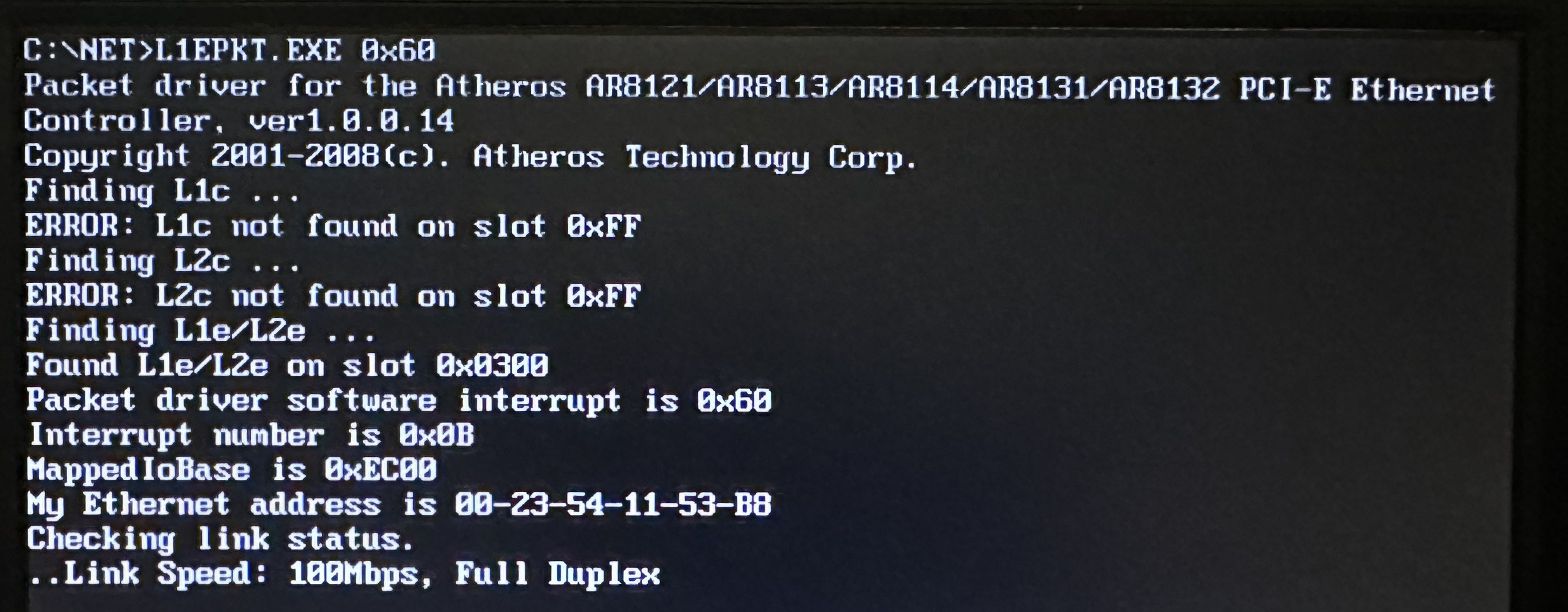
Although the laptop’s network card was not expected to be supported, I eventually found a suitable driver package—and to my surprise, it worked right away. This site listed several package drivers for different interfaces.
https://www.packetdriversdos.net/
I transferred the driver package file to the machine and executed it with the following command:
L1EPKT.EXE 0x60